

 About Us
- Approval-based setup: Approve Prowler once in Slack instead of building a Slack app and pasting a token.
- Confirmed destinations: The connection check verifies every authorized channel and confirms each new one in the channel itself, so a channel Prowler cannot reach is reported before anything depends on it.
- Controlled reach: Prowler posts only to the channels authorized on the integration, and private channels stay invisible until the Prowler app is invited to them.
This guide covers the Slack integration in Prowler Cloud and Prowler Private Cloud. It is unrelated to the Prowler CLI
--slack flag, which posts a scan summary from the command line using a self-created Slack app and the SLACK_API_TOKEN and SLACK_CHANNEL_NAME environment variables — see CLI Integrations for that feature.How the Slack Integration Works
When connected and configured:- A Slack workspace is approved once through Slack’s app install flow, and Prowler stores the resulting credential encrypted.
- Prowler reads the channels it can post to: first the channels the Prowler app is already in, public or private, then the rest of the workspace’s public channels.
- Several of those channels are selected and saved as the integration’s authorized channels.
- The connection check verifies the credential and every authorized channel, and posts a one-time confirmation message to each channel it has not confirmed yet.
- Features that deliver to Slack, such as Alerts, choose their destinations from the confirmed channels.
- Disconnecting removes the integration from Prowler and attempts to revoke Prowler’s access at Slack.
Prerequisites
The Slack integration is available only in Prowler Cloud and Prowler Private Cloud. Prowler Local Server does not serve the Slack endpoints at all, so the Slack card does not appear on the Integrations page and the management page redirects away. Configuring and using the Slack integration requires the Manage Integrations permission. The integration is tenant-wide, so it does not require Unlimited Visibility or any specific Provider Group. One Slack workspace connects per tenant. Approving Prowler again in the same workspace refreshes the stored credential and keeps the authorized channels, but it resets their confirmations and the connection state — the connection check has to be run again. Approving Prowler in a different workspace is refused until the current workspace is disconnected: a workspace is never swapped out silently.Permissions Prowler Requests in Slack
Slack shows a consent screen listing everything the Prowler app asks for. Prowler requests exactly four bot scopes:
Two of these read more broadly than they behave, and both are worth understanding before approving the app.
What chat:write.public Does Not Grant
On the consent screen, chat:write.public reads as permission to post in any public channel. Prowler never uses it that way: Prowler only ever posts to the channels authorized on the integration. The scope exists so that authorizing a public channel does not also require someone to invite the Prowler app to it first.
Why a Private Channel Is Missing From the Channel List
groups:read reveals only the private channels the Prowler app is already a member of. A private channel therefore appears in the channel list only after someone invites @Prowler Cloud to it in Slack:
Connecting a Slack Workspace
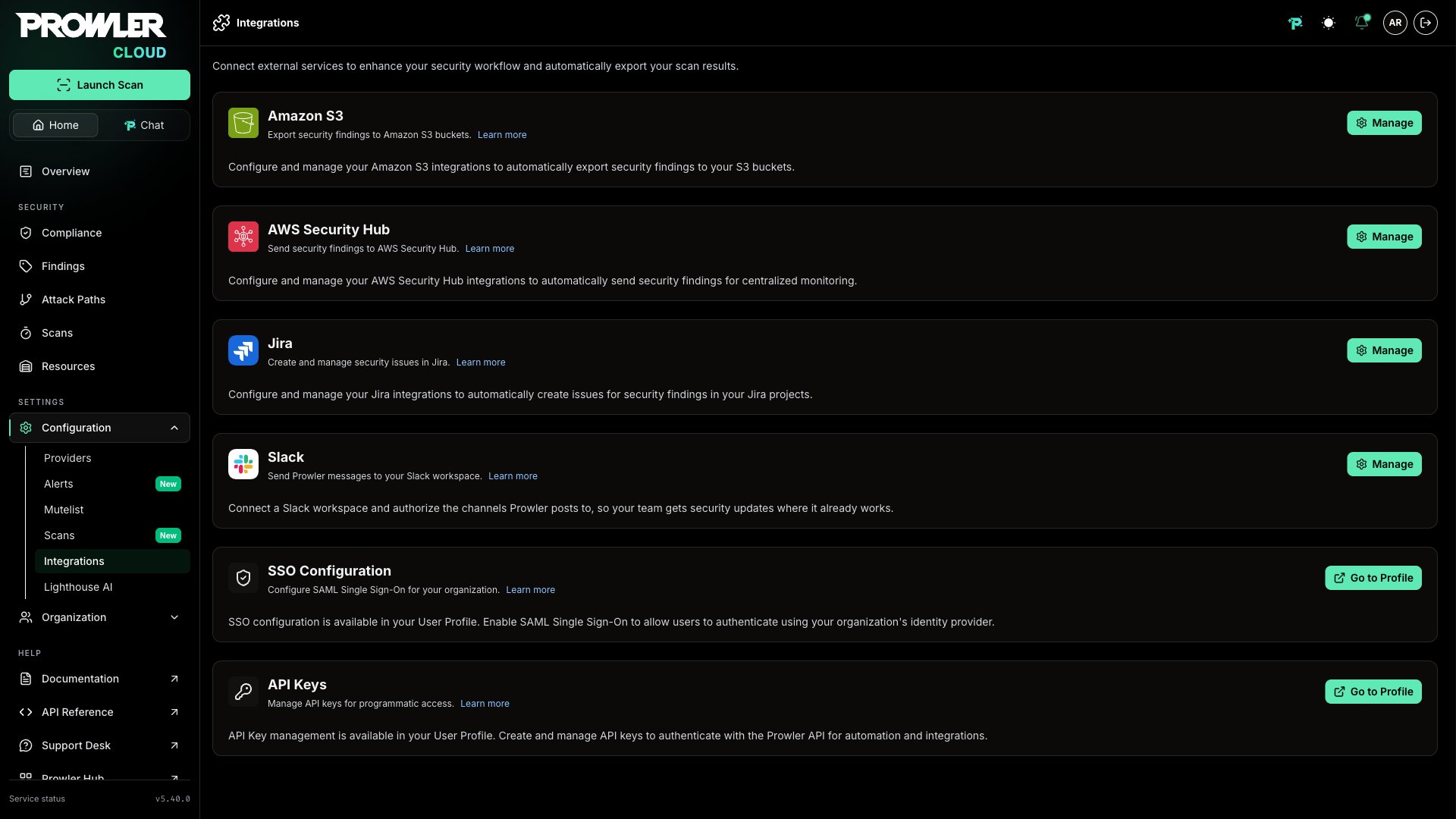
To connect a Slack workspace to Prowler Cloud or Prowler Private Cloud:- In either product, navigate to Integrations.
-
Locate the Slack card and click Manage.
-
Click Add to Slack.
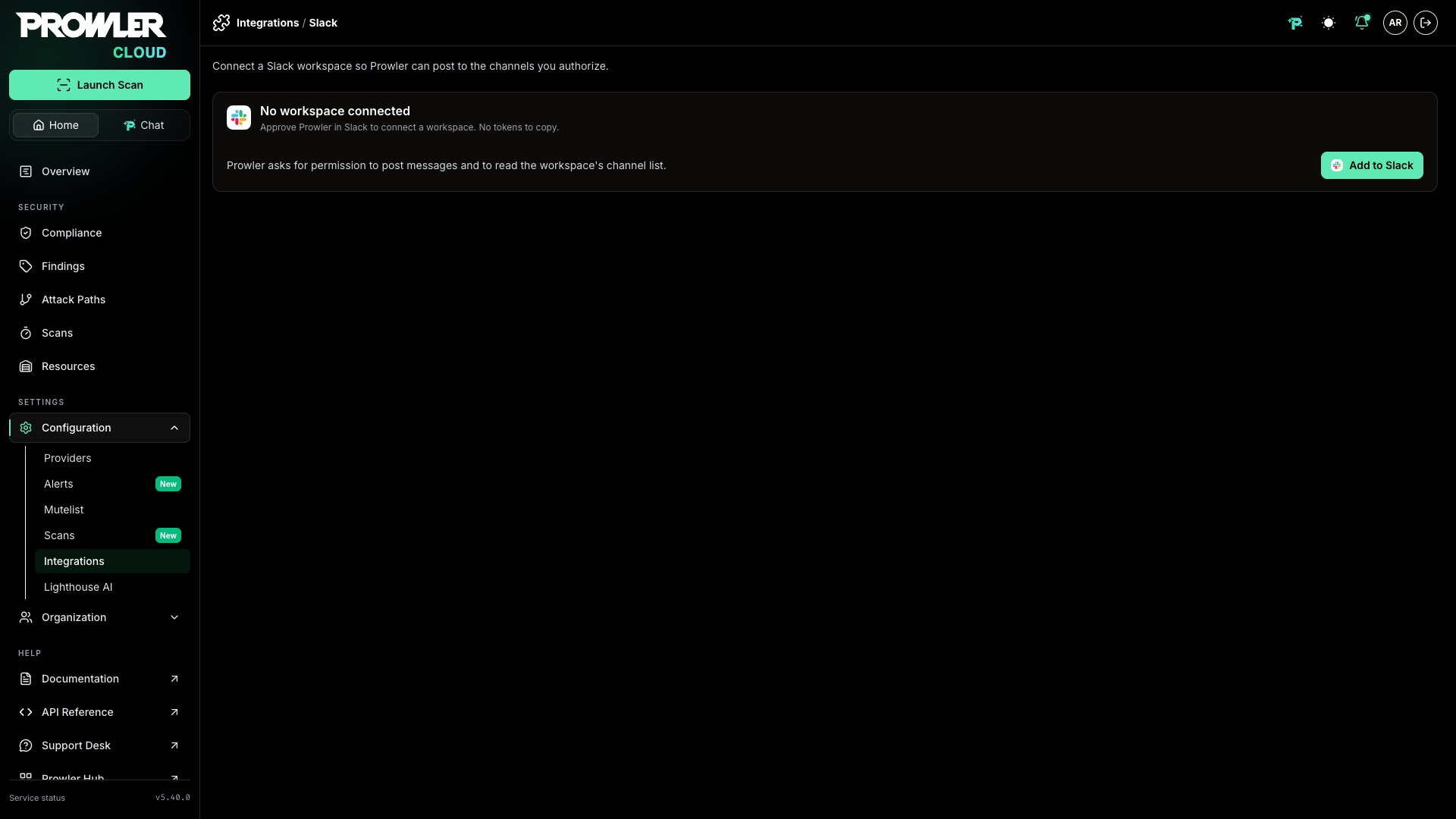
- In Slack, select the workspace to connect and approve the permissions listed on the consent screen.
-
Slack returns to Prowler Cloud or Prowler Private Cloud, which completes the install and shows the connected workspace.
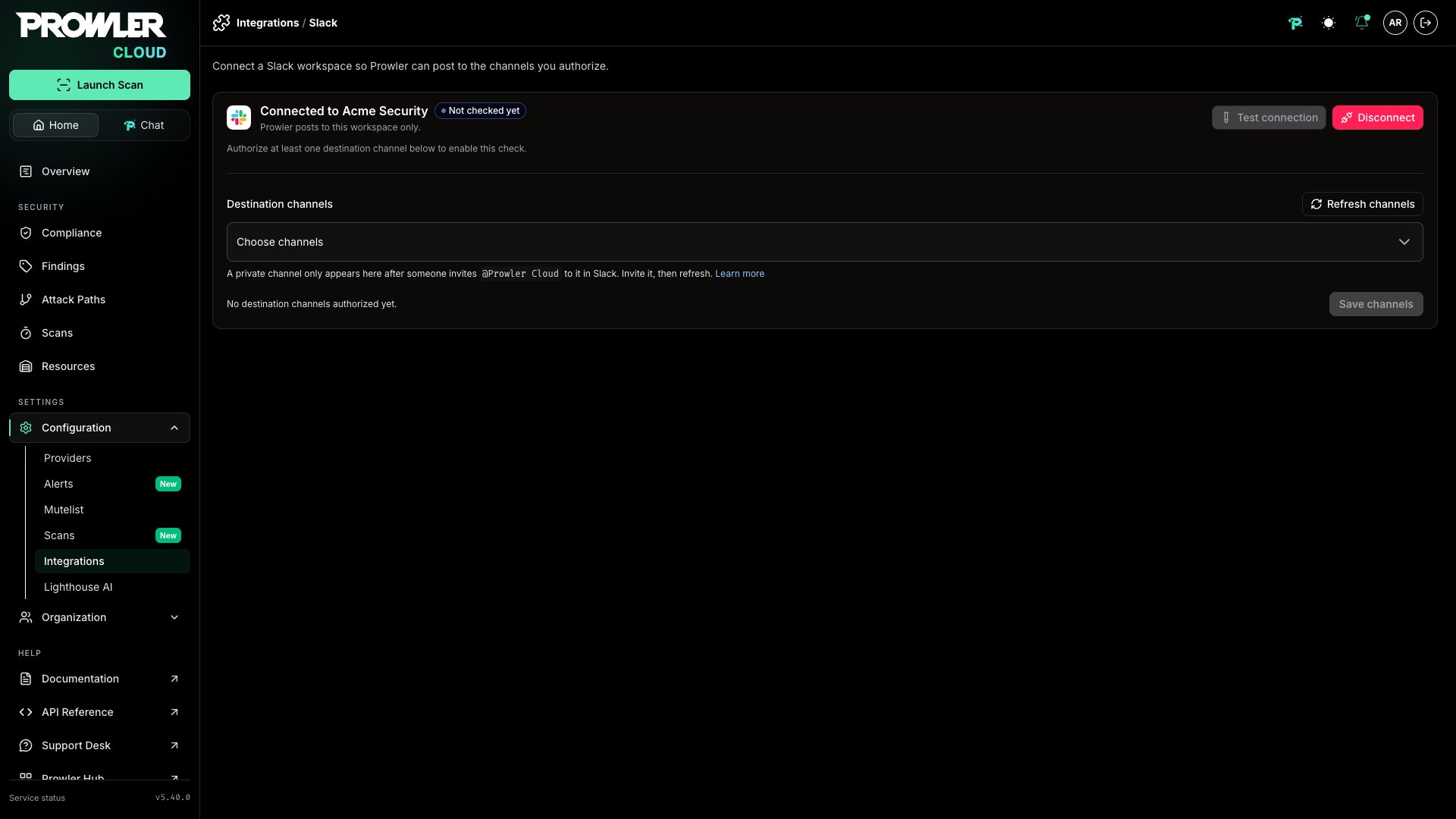
Declining the consent screen creates nothing. Prowler reports that the workspace was not connected and offers to start again.
Authorizing Destination Channels
Prowler posts to the channels authorized on the integration. Several channels can be authorized at once, and once the connection check has confirmed them they are the pool every consumer of the integration draws from: an Alert picks its Slack destinations from the confirmed channels, never from the whole workspace.-
Open the Destination channels selection. It lists the channels the Prowler app is already in, including the private channels it has been invited to, each marked Private, followed by the rest of the workspace’s public channels.
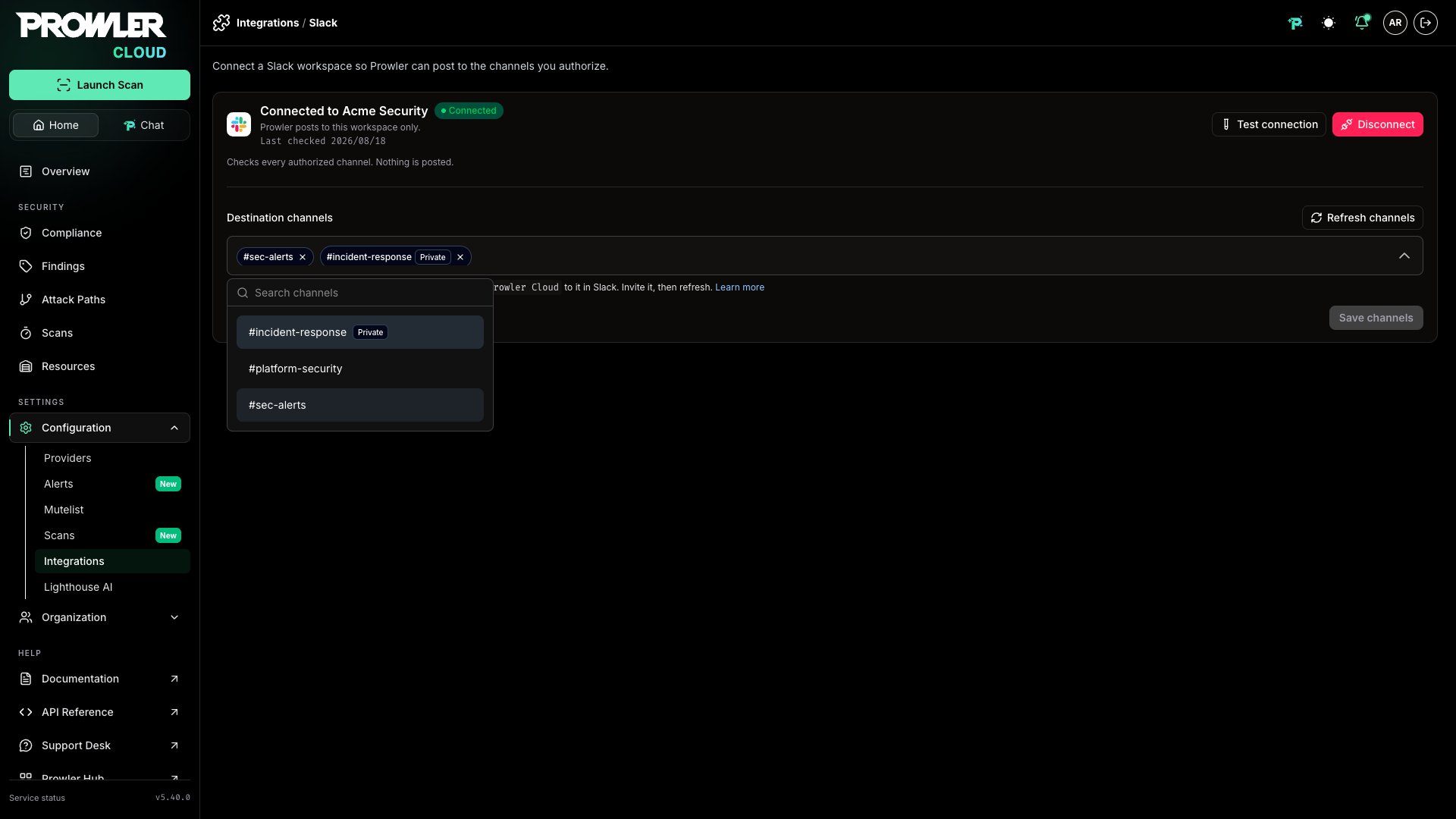
- Select one or more channels. A selected private channel keeps the same Private marking with the list closed, so the authorized set stays readable at a glance.
- Click Save channels.
@Prowler Cloud to a private one, then click Refresh channels.
A workspace can hold more public channels than Prowler reads in one go. When that happens, the selection says so and lists what was read: every listed channel is usable, and the channels @Prowler Cloud is already in are always among them, because they are read first. Only listed channels can be selected: Refresh channels repeats the same bounded read rather than reading further, and the selection’s search filters what was already read, so neither surfaces a public channel the read left out. To make such a channel selectable, invite @Prowler Cloud to it and click Refresh channels.
Saving a new selection replaces the authorized set: channels left out of it stop being authorized, and channels added to it are authorized but not yet confirmed. Changing which channels are in the set also resets the integration’s connection state, so the check runs again over the new set — reordering the same channels does not. Saving an empty selection leaves the integration with no authorized channels, and Test connection cannot be run again until at least one channel is authorized.
Confirming the Authorized Channels
A channel becomes usable as a destination once the connection check has confirmed it. Click Test connection: it verifies the stored credential and every authorized channel, and posts a one-time message to each channel it has not confirmed yet.Disconnecting a Slack Workspace
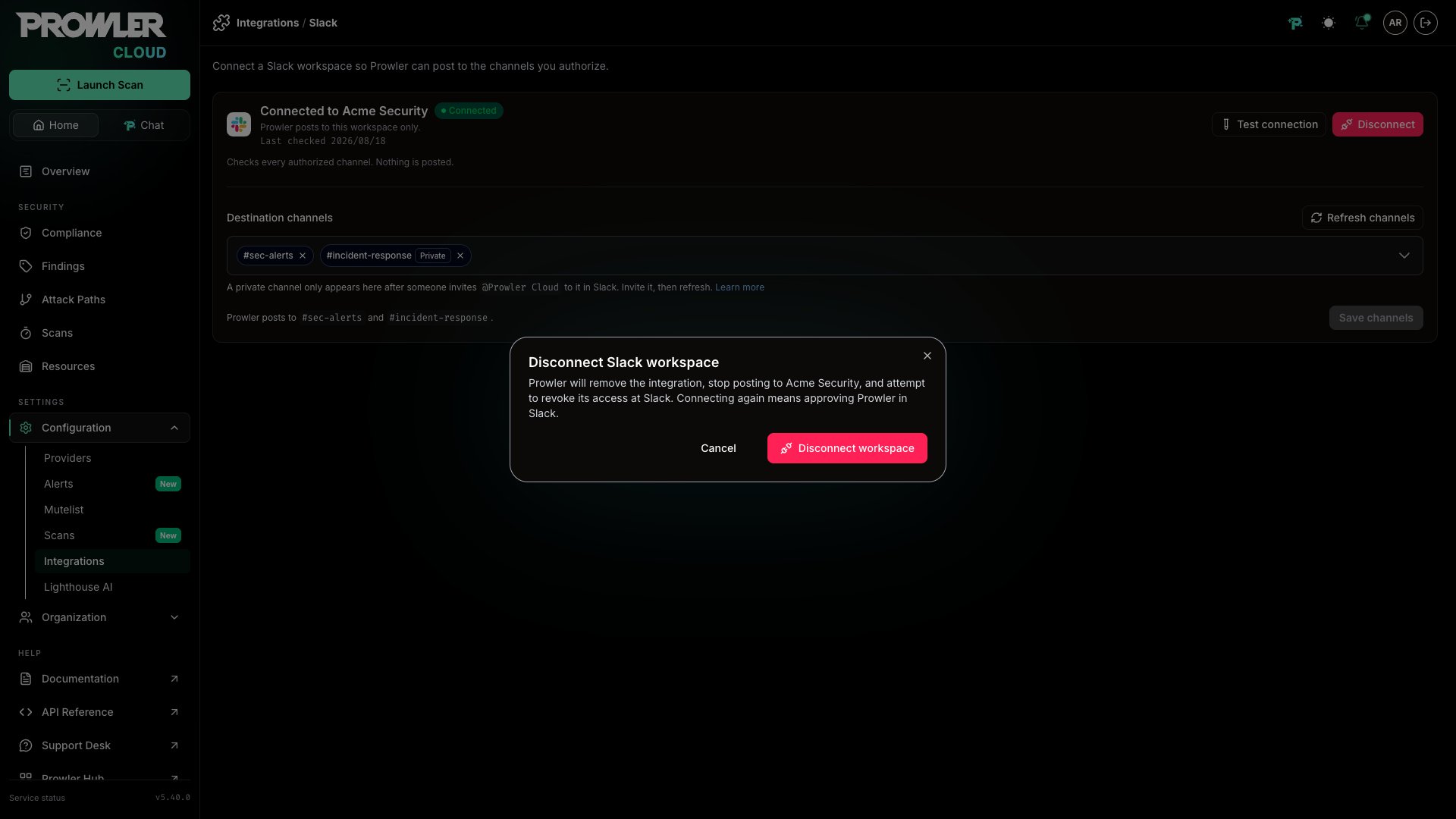
Disconnecting removes the integration from Prowler and attempts to revoke Prowler’s access at Slack.- On the Slack management page, click Disconnect.
-
Review the confirmation, then click Disconnect workspace.
What Revocation Means
Revocation is attempted at Slack, and it is best-effort:- Revocation succeeded: The stored credential no longer grants Prowler anything, and the integration is gone from Prowler.
- Revocation failed: The integration and the stored credential are gone from Prowler either way, so there is nothing to retry. Slack did not confirm the revocation, which means the Prowler app may still be installed in the workspace. Remove it from that workspace’s Slack app settings.
- Revocation unreported: Slack’s answer carried no outcome either way. The integration is gone from Prowler, and the disconnect is reported without any claim about revocation. When certainty matters, check the workspace’s Slack app settings and remove the Prowler app if it is still installed.
Integration Status
The Slack management page reports the state of the connection and offers these actions:Troubleshooting
Slack Is Not Available in This Environment Yet
The Prowler Slack app is not configured for the deployment being used, so no workspace can be connected. This resolves without any action on the tenant’s side — the page starts working as soon as the app is configured.A Private Channel Does Not Appear in the Channel List
The Prowler app has not been invited to it. In Slack, run/invite @Prowler Cloud in that channel, then click Refresh channels. Membership is the permission: no scope reveals a private channel the app is not in.
Connection Test Fails
- Confirm every authorized channel still exists and has not been archived. A failure names the channel Slack refused, and the integration reports as connected only when every authorized channel passes.
- For a private authorized channel, confirm the Prowler app is still a member of it.
- Confirm the Prowler app is still installed in the workspace.
A Channel Is Missing From an Alert’s Channel List
The channel is authorized here but not confirmed yet. Click Test connection: it confirms every authorized channel it has not confirmed, and confirmed channels become selectable on Alerts.Prowler’s Access Has Been Revoked
When Slack stops accepting the stored credential — because a workspace administrator revoked it, or the app was removed from the workspace — Prowler reports the workspace as disconnected and offers Reconnect to Slack. Approving Prowler in Slack again restores access.The Connection Check Fails on a Channel
- Check the outcome reported on the page: it names the channel Slack refused and the reason Slack gave — an archived or deleted channel surfaces here rather than failing silently.
- Confirm that channel is still one of the intended destinations, and that it has not been archived or deleted in Slack.
- For a private channel, confirm the Prowler app is still a member of it.
- One unreachable channel is enough to report the integration as not connected, so removing a retired channel from the authorized set clears the failure — bearing in mind that removing it also removes it from every Alert that targeted it.