

 About Us
Prerequisites
Before creating Alerts, ensure that:- At least one scan has completed and produced findings.
- The user role includes the
manage_alertspermission. - To deliver Alerts to Slack channels, a Slack workspace is connected, at least one channel is authorized on it, and the integration’s connection check has confirmed that channel. See Slack Integration.
manage_alerts permission is required to create, edit, test, enable, disable, and delete Alerts. See RBAC Administrative Permissions for details.
How Alerts Work
Alerts are created from Findings filters. When an Alert runs, Prowler Cloud evaluates the saved conditions against findings and notifies the Alert’s destinations when matching findings exist: an email digest to each recipient, a message to each Slack channel, or both. Destination kinds are independent — neither requires the other, and neither displaces the other.Alerts evaluate findings with status
FAIL only. Findings with status PASS or MANUAL, and muted findings, never trigger an Alert regardless of the saved filters.Creating an Alert From Findings
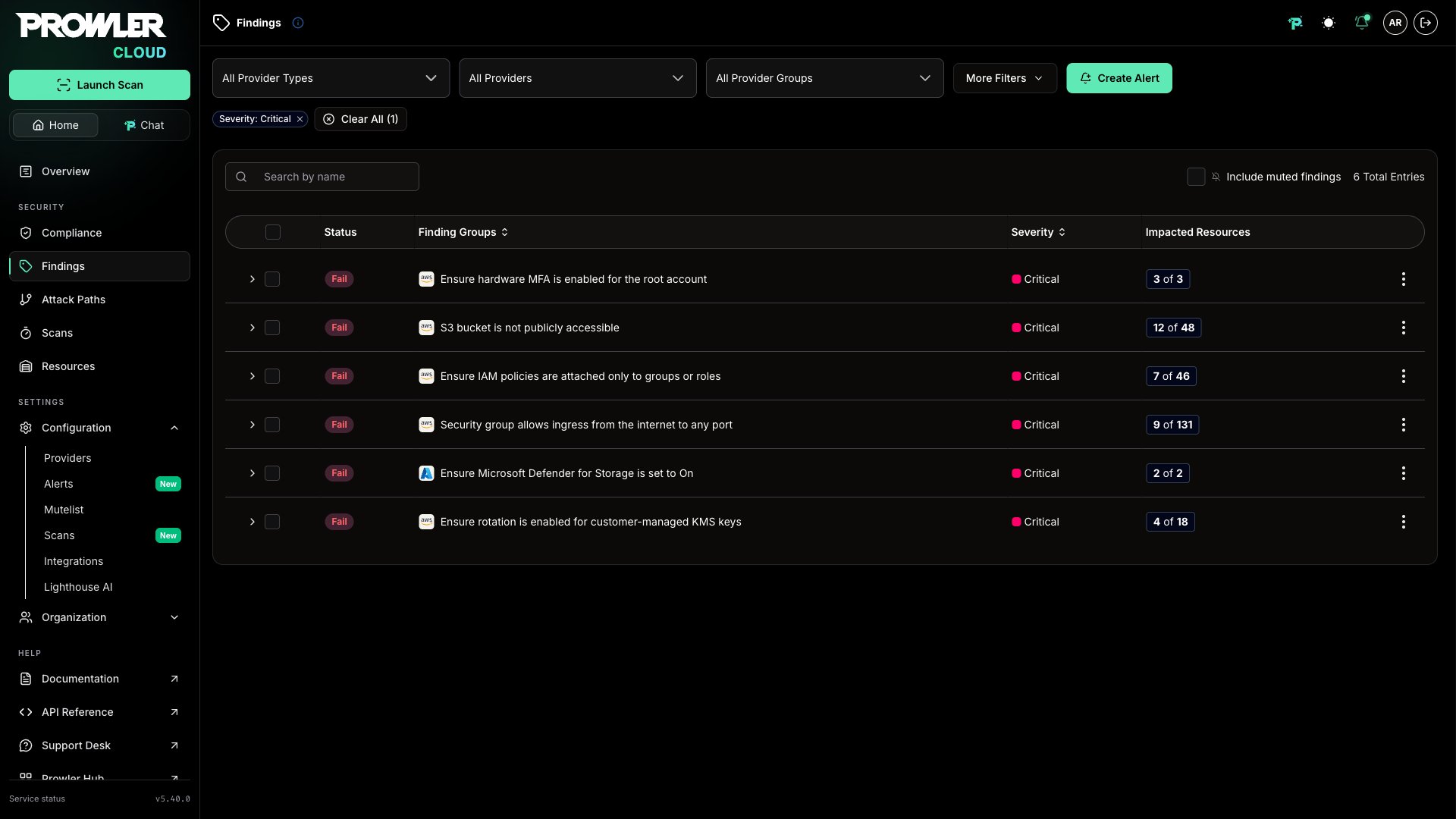
To create an Alert:- Navigate to Findings in Prowler Cloud.
- Apply at least one Alert-compatible filter to define the findings that should trigger the Alert.
-
Click Create Alert.
-
Configure the Alert settings:
- Name: Add a short, descriptive name.
- Description: Add optional context for the Alert.
- Frequency: Select when Prowler Cloud should evaluate the Alert.
- Recipients: Select the recipients who should receive the email digest.
- Destination channels: Select the Slack channels that should receive the Alert. See Slack Channel Destinations.
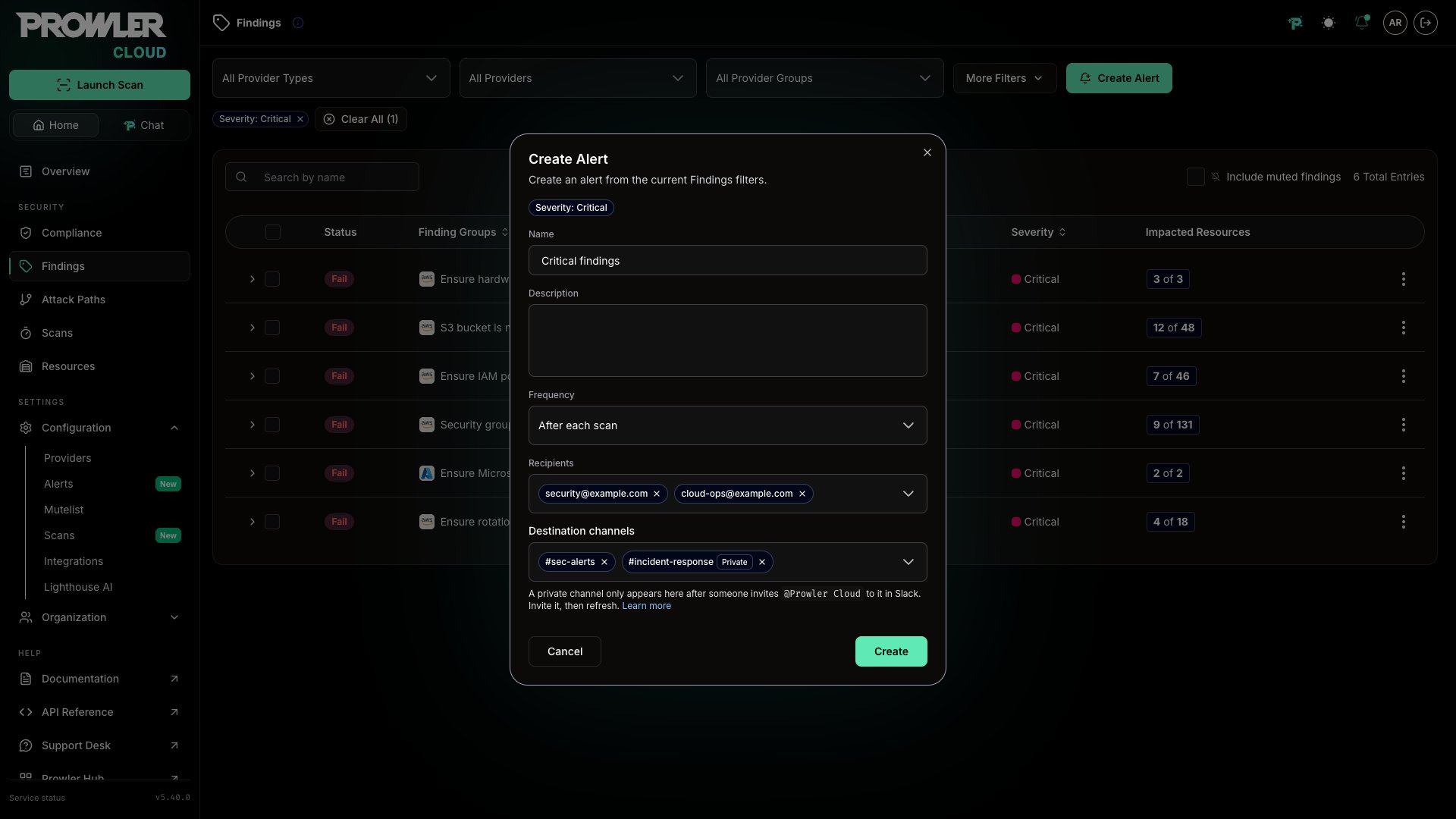
- Click Create.
Alert-Compatible Filters
An Alert-compatible filter is a Findings-page filter that the Alert condition language can evaluate when the Alert runs. The Findings page exposes many filters, but only a specific subset can be saved into an Alert. Filters outside this subset, such as Status, free-text search, sort, or pagination, are ignored when seeding an Alert from the current Findings view. When Create Alert is clicked on the Findings page, Prowler Cloud takes the active filters, keeps only the Alert-compatible ones, and uses them to build the Alert condition. The following filters are Alert-compatible:- Provider type
- Provider
- Severity
- Delta (new findings since the previous scan)
- Region
- Service
- Resource type
- Category
- Resource group
Managing Alerts
Navigate to Alerts to review and manage existing Alerts.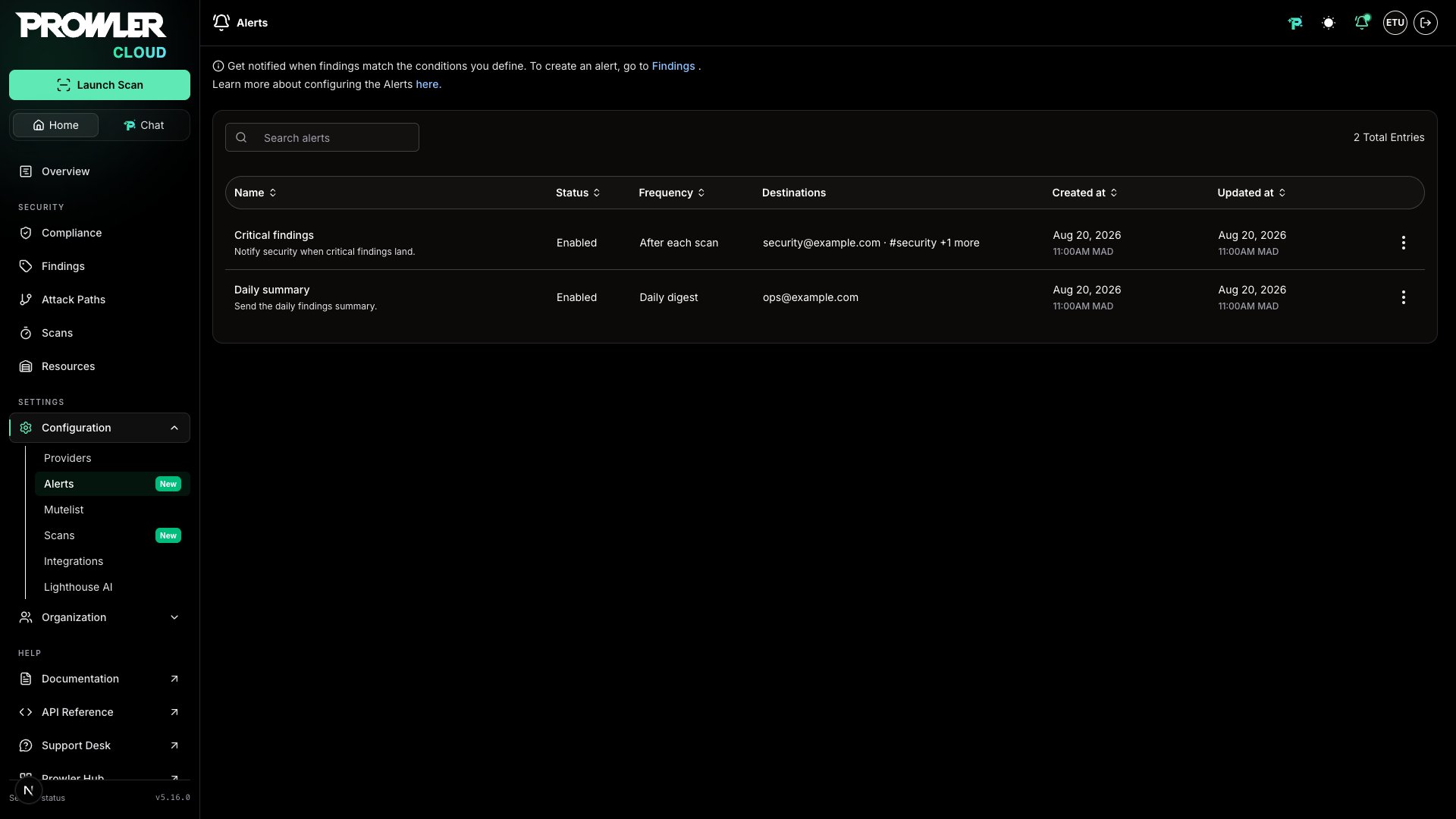
- Email recipients: The first address, plus a count of the rest, such as
security@example.com +2 more. - Slack channels: The first channel, plus a count of the rest, such as
#sec-alerts +1 more.
Testing Alert Filters
When editing an Alert, click Test to preview whether the current filters match existing findings. The test result indicates whether the filters match findings and includes a summary of the matching results.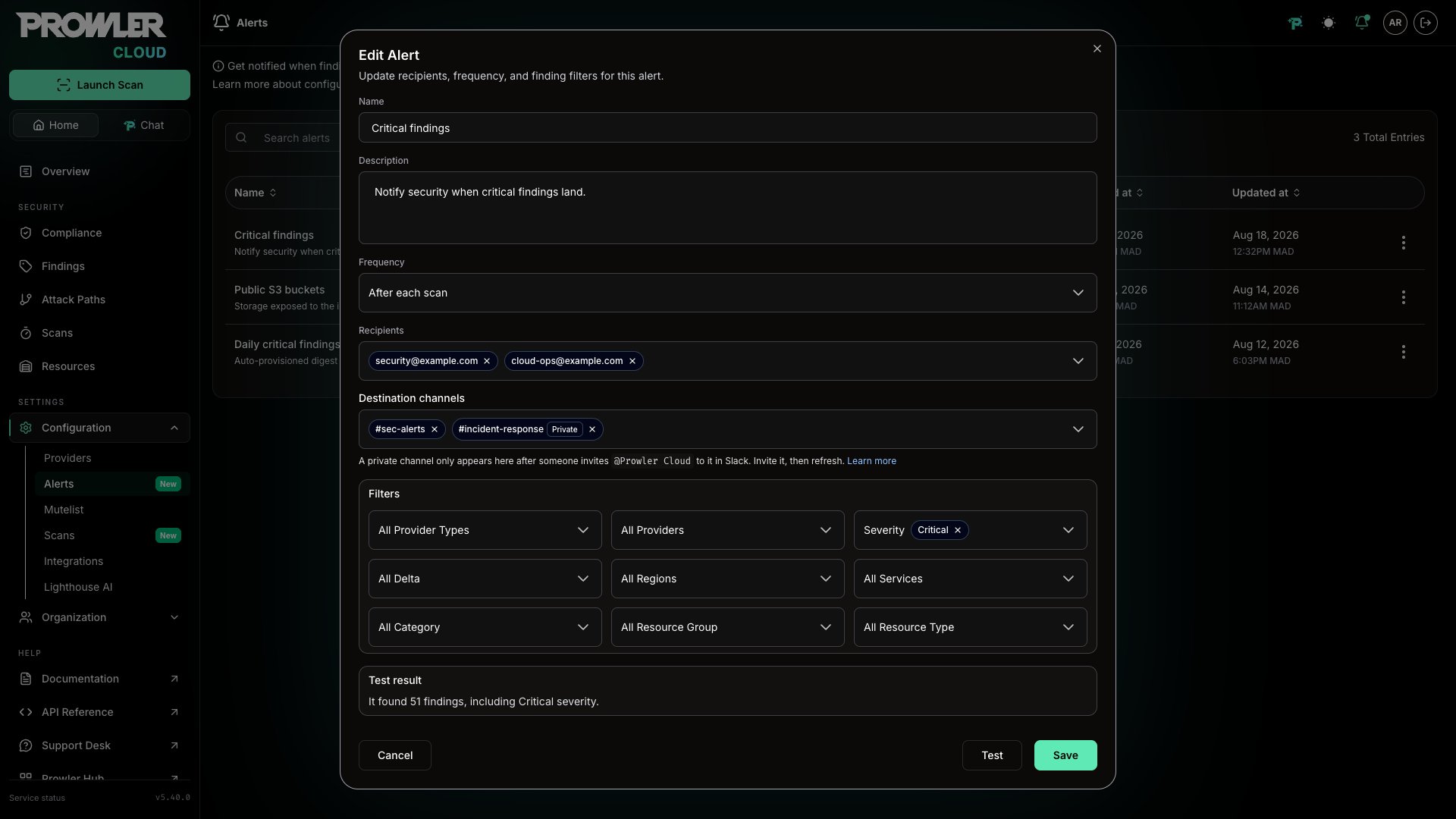
Recipients
Alert recipients are selected from the email addresses available in the tenant. Recipients receive an email digest each time an Alert evaluates and matches findings.By default, the organization owner receives a daily digest for critical findings. Adjust the recipient, frequency, or filters in the Alert configuration to change this behavior.
Slack Channel Destinations
An Alert can post to Slack channels alongside its email recipients, or instead of them. The Destination channels field sits directly below Recipients in the Alert form, both when creating an Alert and when editing one. When the Alert matches findings, Prowler Cloud posts a message to each of its channels and sends the email digest to each of its recipients, independently of each other. The channels offered are the confirmed channels of the connected Slack integration, never the whole Slack workspace. Widening the pool takes two steps on the integration: authorize the channel there, then run its connection check, which confirms the channel by posting a one-time confirmation message to it. Once confirmed, the channel is selectable on every Alert. See Slack Integration for connecting a workspace, authorizing its channels, and confirming them. A channel that was authorized a moment ago but does not appear in the Alert form has not been confirmed yet. Run Test connection on the Slack integration, then reopen the Alert form. Private channels are identified as Private both in the open channel list and on the selected channels once the list is closed, so a private destination is never mistaken for a public one.When Slack Channels Cannot Be Selected
The field is always present, so channel delivery is never silently missing. It reports why it cannot be used:
In both states the rest of the Alert is unaffected: it can still be created or saved with its filters, frequency, and email recipients.
Slack destinations stay in step with the integration. Removing a channel from the integration’s authorized set — or disconnecting the Slack integration altogether — removes that channel from every Alert that targeted it, so an Alert never keeps a destination Prowler can no longer deliver to. The Alert keeps its filters, frequency, and email recipients, and future delivery to that channel stops: nothing is posted to announce the removal, and the notifications already delivered stay in the channel. Restoring delivery means authorizing and confirming the channel again on the integration, then selecting it again on the Alert.
Email Notifications
When an Alert matches findings, Prowler Cloud sends a security alert email that summarizes the matching findings. The email includes:- The scan name and evaluation time.
- The total number of matching findings.
- The number of Alert rules that triggered.
- A preview of the affected findings, grouped by severity, with resource details and the originating rule.
- A direct link to view all matching findings in Prowler Cloud.

Best Practices
- Start with focused filters: Create Alerts for specific high-priority scopes, such as critical findings, production providers, or important services.
- Use clear names: Choose names that explain the intent of the Alert.
- Review destinations regularly: Keep recipient lists and channel selections aligned with current ownership.
- Test before saving edits: Use Test after changing filters to confirm that the Alert matches the expected findings.
- Disable instead of deleting during tuning: Disable Alerts temporarily when adjusting filters or destinations.