

 About Us
Prowler Cloud
Step 1: Access Prowler Cloud or Prowler Local Server
- Navigate to Prowler Cloud or launch Prowler Local Server
-
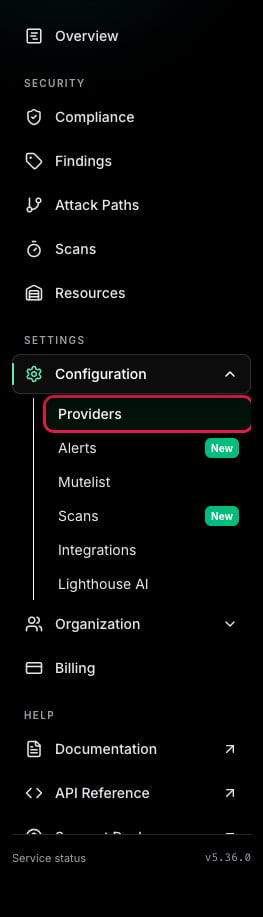
Go to “Configuration” > “Providers”
-
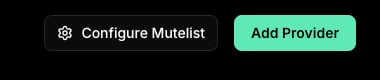
Click “Add Provider”
- Select “Kubernetes”
- Enter your Kubernetes Cluster context from your kubeconfig file and optionally provide a friendly alias
Step 2: Configure Kubernetes Authentication
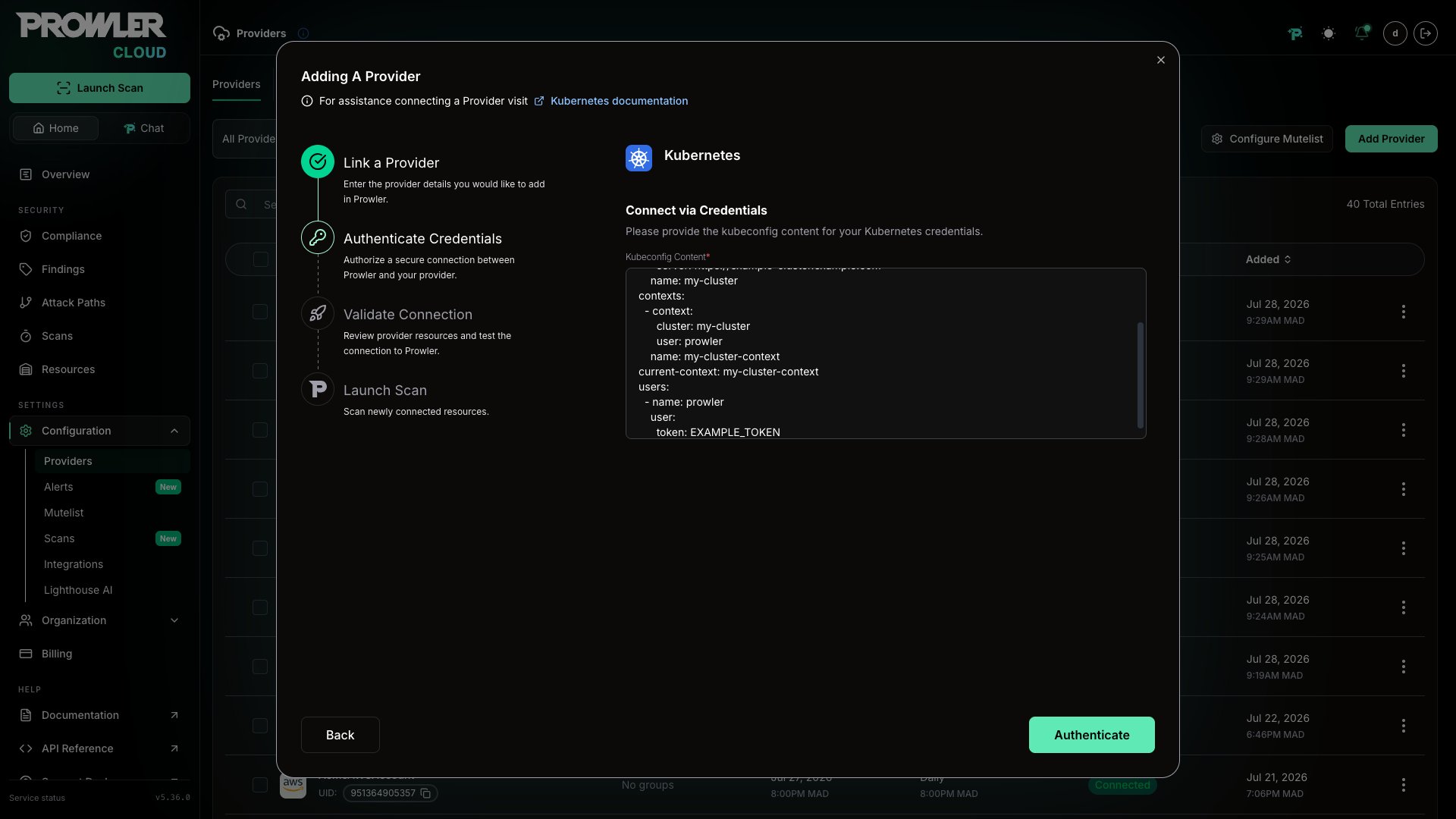
For Kubernetes, Prowler Cloud uses akubeconfig file to authenticate. Paste the contents of your kubeconfig file into the Kubeconfig content field.
Only inline kubeconfig credentials are supported:
token, username/password, or client-certificate-data with client-key-data for users, and certificate-authority-data for clusters. Kubeconfigs that reference external files (tokenFile, client-certificate, client-key, certificate-authority), run commands (exec, cmd-path), use auth-provider directives, set a proxy URL, or include unsupported user or cluster fields are rejected. Impersonation fields (as, as-uid, as-groups, as-user-extra) are accepted but not applied, so Prowler connects with the identity of the user credentials. Use inline credentials such as the ServiceAccount token flow documented below.kubeconfig file is located at ~/.kube/config.
Step 3: Additional Setup for EKS, GKE, AKS, or External Clusters
If you are adding an EKS, GKE, AKS or external cluster, follow these additional steps to ensure proper authentication: Make sure your cluster allows traffic from the Prowler Cloud IP address52.48.254.174/32
-
Apply the necessary Kubernetes resources to your EKS, GKE, AKS or external cluster (you can find the files in the
kubernetesdirectory of the Prowler repository): -
Generate a long-lived token for authentication:
- Security Note: The
--duration=0option generates a non-expiring token, which may pose a security risk if not managed properly. Choose an appropriate expiration time based on security policies. For a limited-time token, set--duration=<TIME>(e.g.,--duration=24h).
Important: If the token expires, Prowler Cloud can no longer authenticate with the cluster. Generate a new token and remove and re-add the provider in Prowler Cloud with the updatedkubeconfig. - Security Note: The
-
Update your
kubeconfigto use the ServiceAccount token:Prowler validates the entire kubeconfig file and requires it to contain only the ServiceAccount user and its cluster entry with certificate-authority-data; remove any exec entries from EKS, GKE, or AKS or Prowler will reject the file. Replace<SA_TOKEN>with the generated token and<CONTEXT_NAME>with your KubeConfig Context Name of your EKS, GKE or AKS cluster. -
Add the modified
kubeconfigin Prowler Cloud and test the connection.
Prowler CLI
Non In-Cluster Execution
For execution outside the cluster environment, specify the location of the kubeconfig file using the following argument:If no
--kubeconfig-file is provided, Prowler will use the default KubeConfig file location (~/.kube/config).prowler will scan the active Kubernetes context by default. Use the --context flag to specify the context to be scanned.By default,
prowler will scan all namespaces in your active Kubernetes context. Use the --namespace flag to specify the namespace(s) to be scanned.In-Cluster Execution
For in-cluster execution, use the supplied yaml files inside/kubernetes:
They can be used to run Prowler as a job within a new Prowler namespace:
By default,
prowler will scan all namespaces in your active Kubernetes context. Use the --namespace flag to specify the namespace(s) to be scanned.