About Us
Prerequisites
Set up authentication for Google Workspace with the Google Workspace Authentication guide before starting either path:- Service Account: Create a Service Account in a GCP project with Domain-Wide Delegation enabled.
- OAuth Scopes: Authorize the required read-only OAuth scopes in the Google Workspace Admin Console.
- Customer ID: Identify the Google Workspace Customer ID to use as the provider identifier.
- Delegated User: Have the email of a super administrator to use as the delegated user.
Prowler Cloud
Onboard Google Workspace using Prowler Cloud
Prowler CLI
Onboard Google Workspace using Prowler CLI
Prowler Cloud
Step 1: Locate the Customer ID
- Log into the Google Workspace Admin Console.
- Navigate to “Account” > “Account Settings”.
-
Find the Customer ID on the Account Settings page.
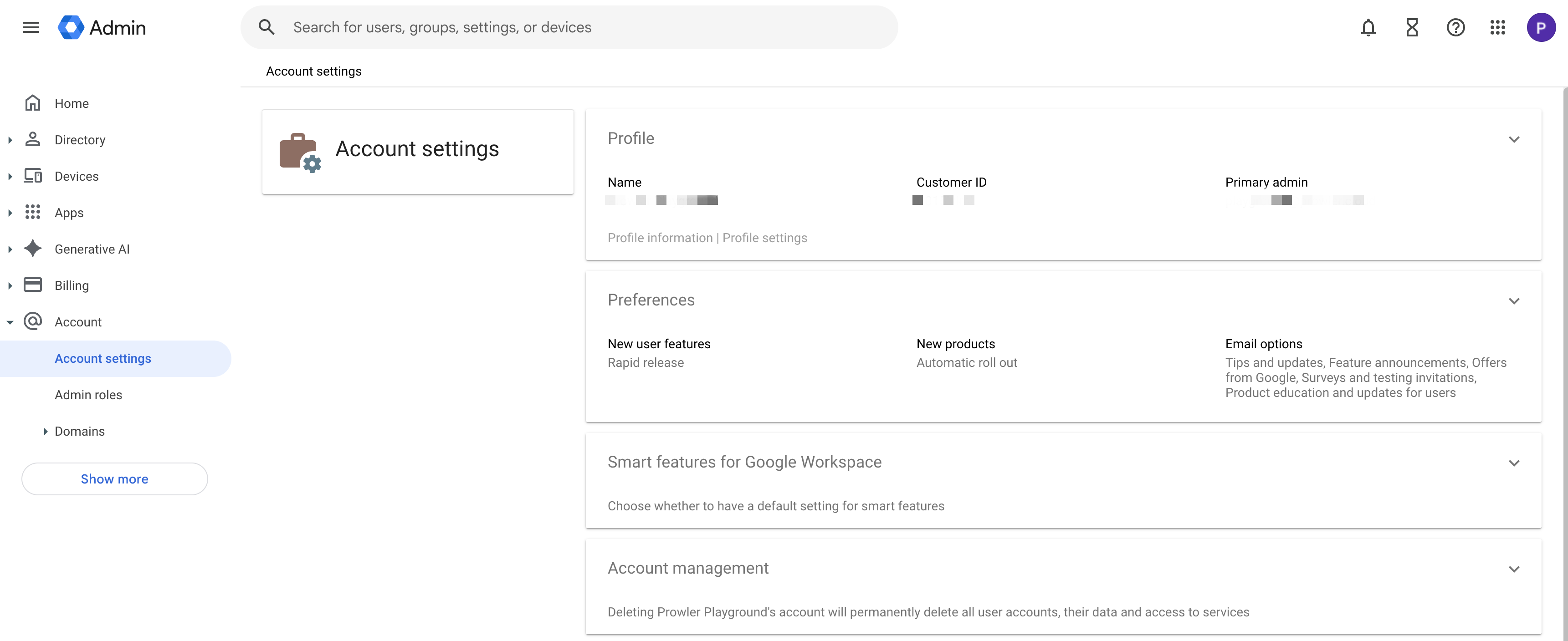
The Customer ID starts with the letter “C” followed by alphanumeric characters (e.g.,
C0xxxxxxx). This value acts as the unique identifier for the Google Workspace account in Prowler Cloud.Step 2: Open Prowler Cloud
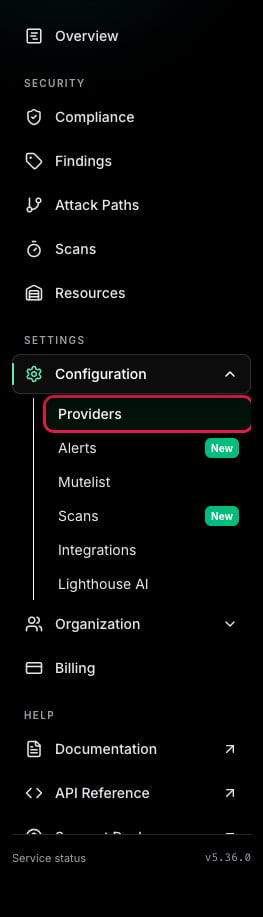
- Go to Prowler Cloud or launch Prowler Local Server.
-
Navigate to “Configuration” > “Providers”.
-
Click “Add Provider”.
-
Select “Google Workspace”.
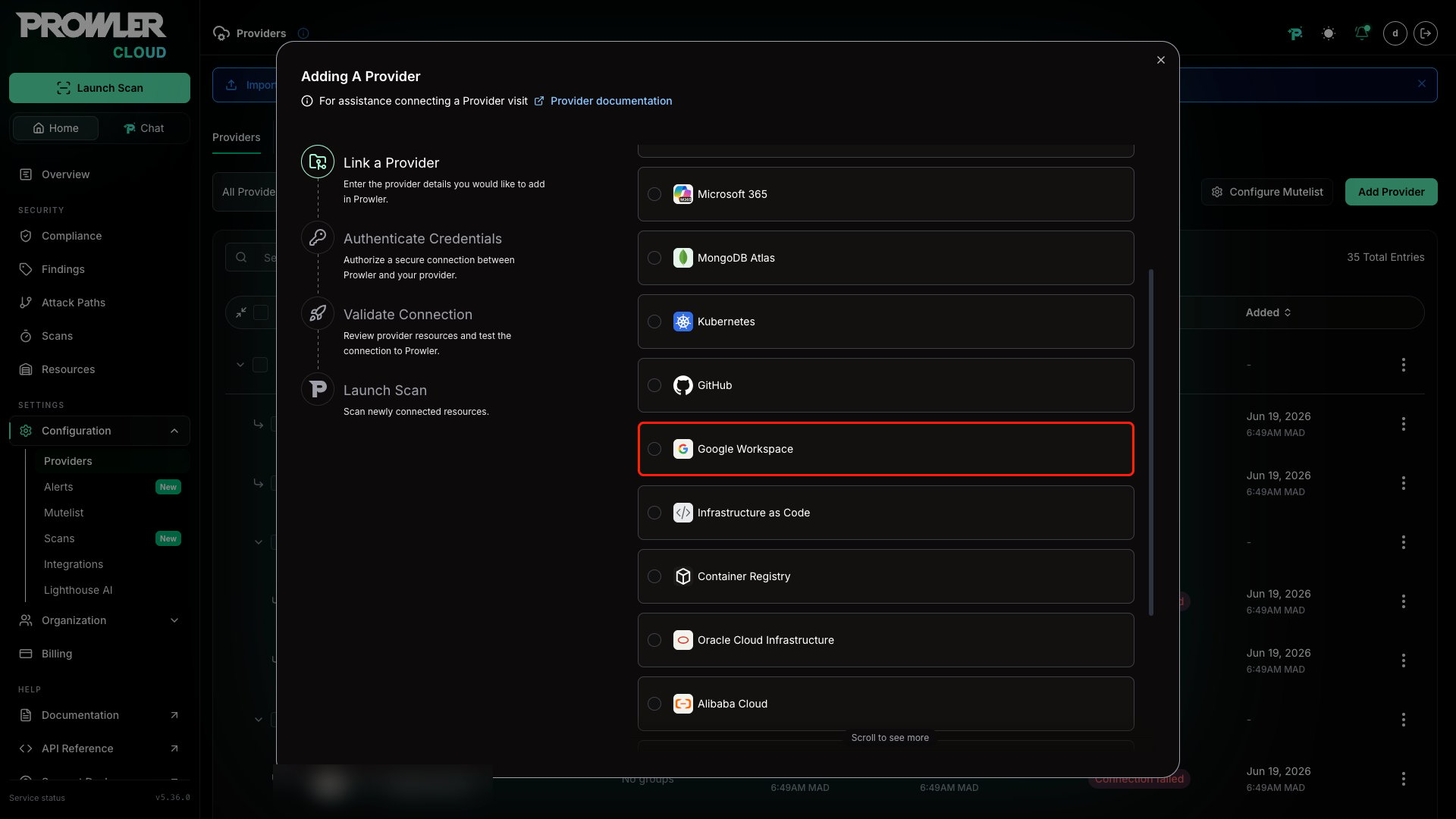
Step 3: Provide Credentials
-
Enter the Customer ID and an optional alias, then click “Next”.
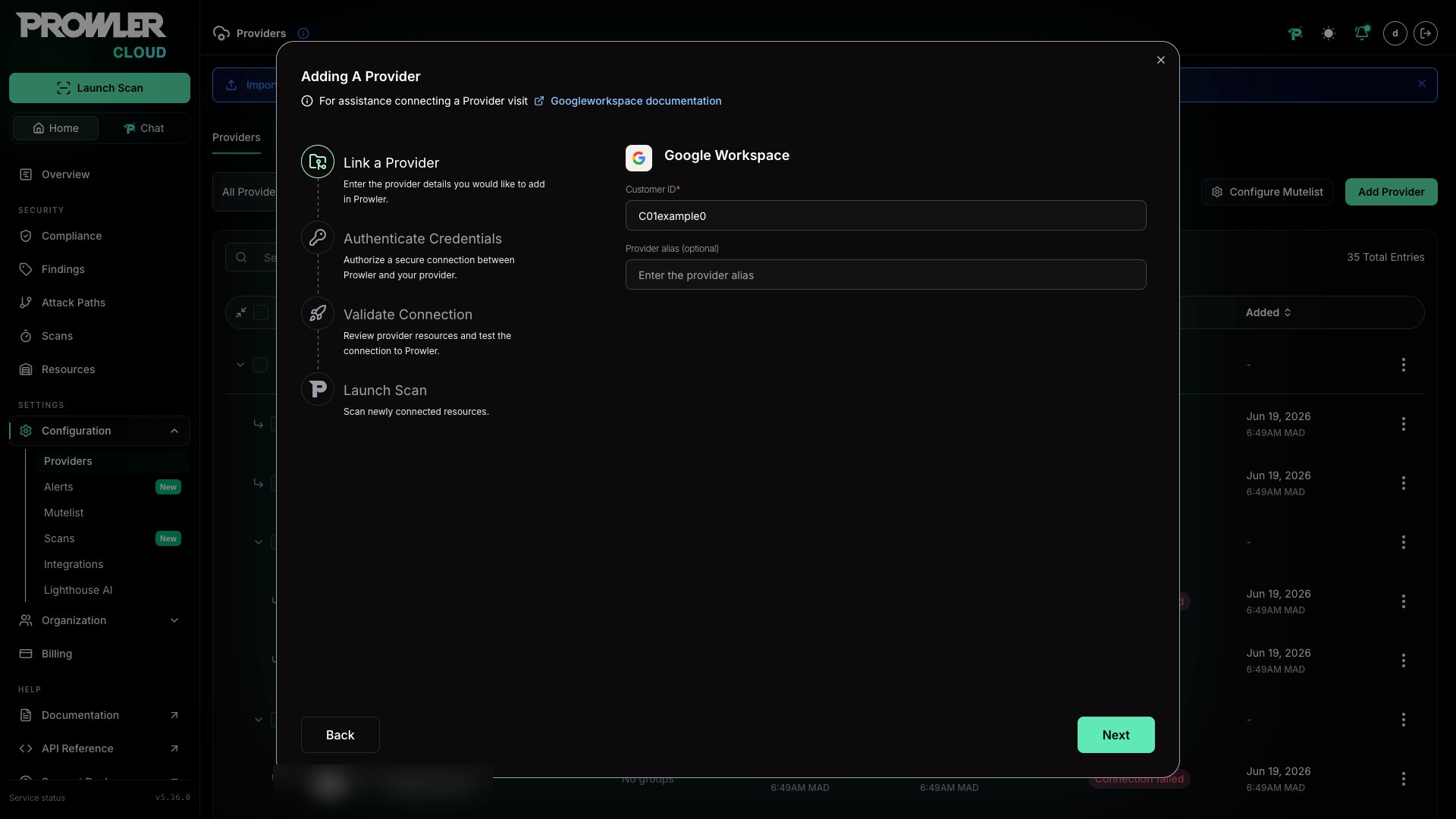
- Paste the Service Account JSON credentials content.
-
Enter the “Delegated User Email” (a super administrator in the Google Workspace organization).
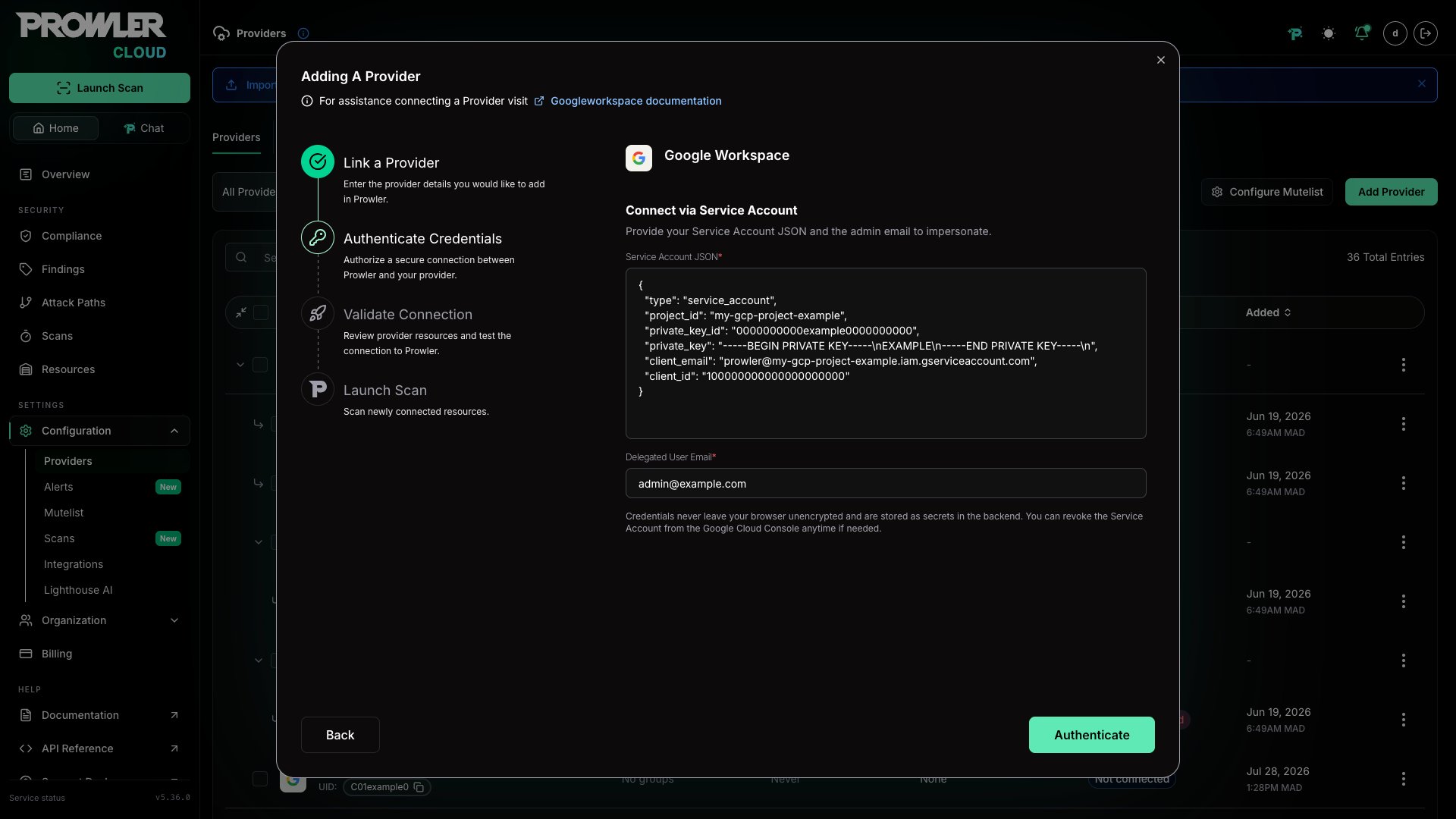
The Service Account JSON is the full content of the key file downloaded when creating the Service Account. Paste the entire JSON object, not just the file path. For setup instructions, see the Authentication guide.
Step 4: Check Connection
- Click “Check Connection” to verify that the credentials and Domain-Wide Delegation are configured correctly.
-
Prowler will test the Service Account impersonation and Admin SDK access.

If the connection test fails, verify that Domain-Wide Delegation is properly configured and that all required OAuth scopes are authorized. It may take a few minutes for delegation changes to propagate. See the Troubleshooting section for common errors.
Step 5: Launch the Scan
- Review the summary.
-
Click “Launch Scan” to start auditing Google Workspace.